電子報銷
關於
電子報銷
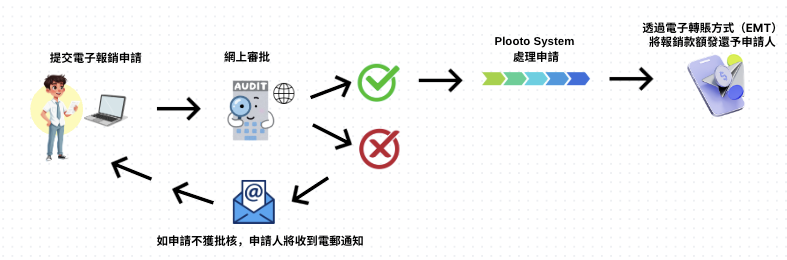
由 2026 年 1 月 12 日 起,所有報銷申請必須以電子方式提交,並將透過電子轉帳(Email Money Transfer,EMT)進行付款。
敬請留意,所有 2025 年度的報銷申請,必須於 2026 年 1 月 11 日或之前,使用現行的報銷憑證提交。
簡單流程圖如下所示:
關於
需知和程序

申請人須知和程序
提交申請前,請先仔細閱讀相關詳情
申請費用詳情
- Select Claim Type (a) Admin (b) Ministry
- Fill out the Submitter Information
(a) First Name
(b) Last Name
(c) Email Address
(d) Confirm Email Address
(e) Phone Number
* Make sure you use the same first and last name on each claim
* Make sure your email address is correct. EMT will deposit the money into your selected account based on your email address - Select Submit Type
(a) submitting the expense claim for someone else
(b) Submitting Claim to pay Outside Vendor
* fill out all necessary information of the selected submit type. Make sure all data are correct. - Expense Details and/or Ministry Details
After selecting Expense Category or Ministry Division info, you will see the name of the Approvers on the right-hand side (if using the computer) or on the bottom (if using the phone). - Attachments: Upload at least one receipt to system
- Click “Submit Expense Claim” to send the claimto the approvers for review and approval * You will receive an email from MCBC Expense Claims stating that your expense claim has been submitted.

審批人須知和程序
審批前,請先仔細閱讀相關詳情
審批人重要事項
Important Notes for Approvers:
Setup your own Approver’s account.
Sign in https://mcbcexpense.lovable.app/auth
First time login: Sign in with your email address and temporary password MCBC2025
Create your own password and then login
The dashboard will show up as follow:
Review the submitted claims that are pending approval
Make sure all the submitter’s information such as name, email address and phone numbers are there
If the expense claim is submitted on behalf of a third party or outside vendor, make sure the information for the other person and/or vendor is complete
Make sure the amount of the claim agrees with the supporting documentation such as invoices, receipts, proof of payment etc.
Make sure that the claim provides sufficient explanation of the nature of the expense
Make sure the description and nature of the expense meets the criteria of the ministry for example: golf membership dues or meals and entertainment at high end restaurant etc. should be rejected
Upon review, you can either approve or reject the claim.
If approved is given, the process is completed. The submitter will receive an email stating that the claim is approved, and the claim will be processed for payment
If the claim is rejected, please provide the reasons for the rejection. The submitter will receive an email that the claim is rejected with explanation
When you approve an expense claim, you are confirming that the expense were incurred on behalf of MCBC and you are certifying that the information to the best of the approver’s knowledge is accurate and complete.
According to the approval matrix provided by each division, the submitted claim will first go to Approver #1. If no action is taken within 48 hrs (to be determined), the claim will be escalated to Approver #2. Approver #1 will also receive an email stating that the claim has been re-assigned to Approver #2. The claim will be held in pending status until it is either rejected or approved by the Approver #1 or #2.
(for testing purpose, we set the time limit to 12 hours)

有關電子轉帳
有關電子轉帳(EMT),提交人需知重要事項
有關電子轉帳(EMT)的重要事項
Important Notes on Email Money Transfer (EMT) for submitters (applicants/claimants)
Email Notification
Security Question
Connect to a bank account
Confirmation
Email Notification:
The Email Address you use must be correct. All direct Email Money Transfer will be based on your submitted email address.
You will receive an email from Plooto advising that MCBC is sending you a payment on the Plooto Network
Click on “ACCEPT PAYMENT”
For “FIRST TIME ONLY”, a security question will be asked, and you must provide an answer to continue.
Security Question: Which church do you belong to?
Answer: 9580MCBC
(After the first time, there will no need for security question and answer)
Connect to a Canadian bank account with a participating Financial Institution
Click on Deposit Money, you will be directed to the following webpage to connect to your bank account
You can use either method to provide the required bank information to Plooto
After successfully connection, you will be directed to the following webpage to accept transfer and deposit the money into your bank account
The EMT will have an expiry date of one month from the payment date
You must check on “REUSE this bank information” in order to accept all future payments from “MARKHAM CHINESE BAPTIST CHURCH” without going through the same process of connecting to the bank each time to receive the payment
Click on “Accept Transfer”
Confirmation
Once the transfer is accepted, the following webpage will appear:
You will then receive three emails to show the status of your payment
1st Email stating that you have accepted a payment from MCBC
2nd Email advising that MCBC is sending you a payment with Plooto
3rd Email stating that Payment from MCBC was successfully completed